
Who this is for: practice managers, surgeons and nurses
Have the patient's email, mobile number and operation details handy. The patient's mobile number is how they'll sign in to the Alivra app, so check it carefully.
Step one: open a new referral
On your Home page, select New referral at the top right. The referral form opens. Fields marked * are required. Everything else is optional.

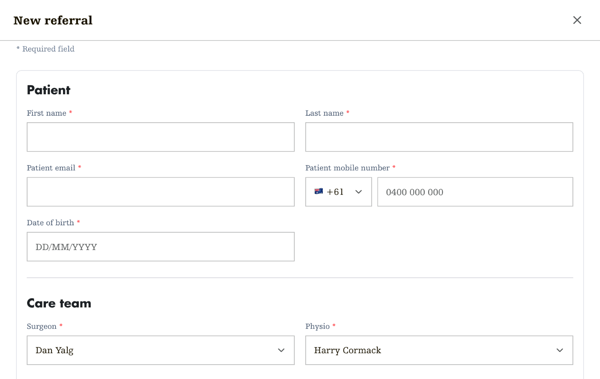
Step two: patient and care team
- Fill in First name, Last name, Patient email, Patient mobile number and Date of birth.
- Under Care team, check the Surgeon and Physio. If your clinic has one surgeon, they're already selected. A physio is selected for you too, and surgeons who've set a preferred physio see them first. Change either if you need to.
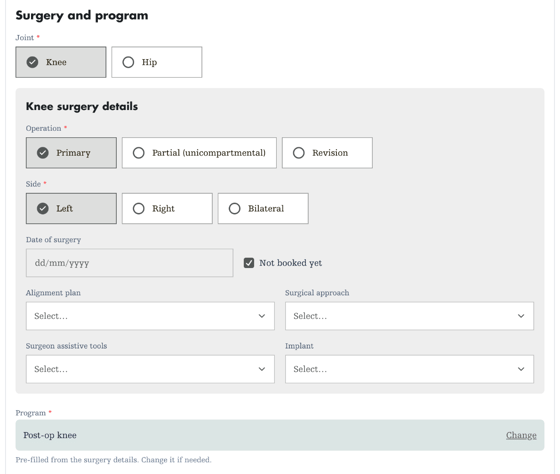
Step three: surgery and program
- Choose the Joint, Operation and Side.
- Add the Date of surgery. If it isn't booked yet, tick Not booked yet.
- If you know them, add the Alignment plan (knees only), Surgical approach, Surgeon assistive tools and Implant. These are optional.
- The Program fills in from the joint, operation and side. Check it's right, and select Change if it isn't.
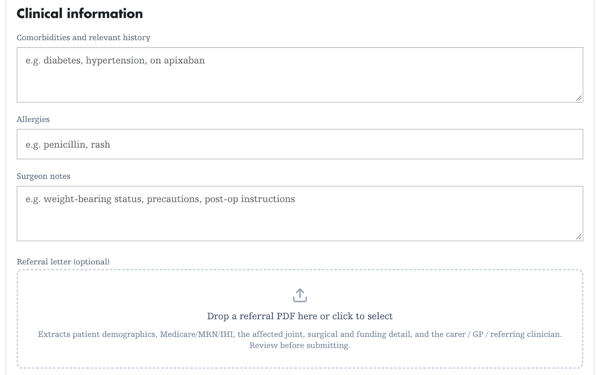
Step four: clinical information (optional)
Add any Comorbidities and relevant history, Allergies and Surgeon notes, such as weight-bearing status or precautions.
You can also drop in the Referral letter as a PDF. Alivra reads it and fills in what it can, such as the patient's details, joint and surgery, carer and GP. Check everything it fills in before you submit.
Step five: additional information (optional)
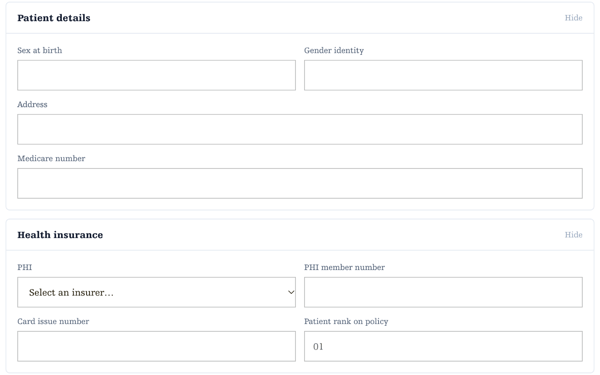
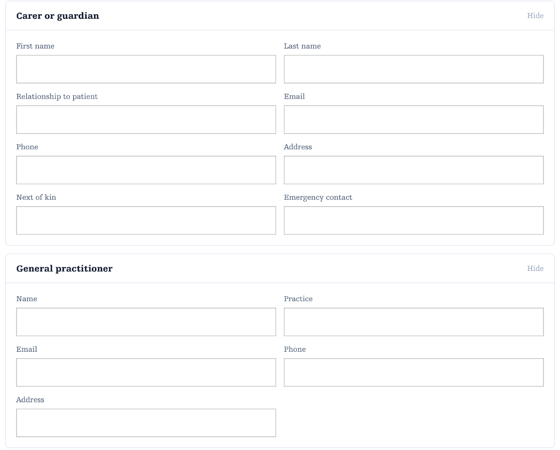
These four sections start closed. Select a section to open it, and add what you have now. It's saved on the patient record and can be updated later.
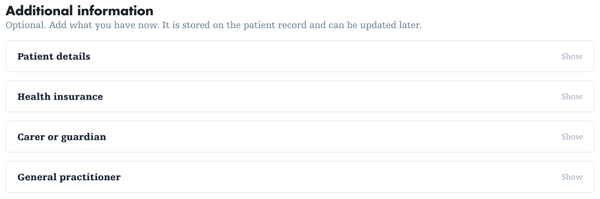
- Patient details: sex at birth, gender identity, address and Medicare number.
- Health insurance: the patient's health fund, member number, card issue number and their number on the policy.
- Carer or guardian: their name, relationship to the patient, email, phone, address, next of kin and emergency contact.
- General practitioner: the GP's name, practice, email, phone and address.
Step six: submit
Select Submit referral. If something's missing, a message tells you which field to fix.

What happens next
- The patient gets a text message from Alivra with a link to get started and choose how to pay.
- They appear on your Home page as Pending.
- Once they've paid and booked their first physio appointment in the app, they show as Active.
Track their progress on your referral tracker.