
Who this is for: practice managers
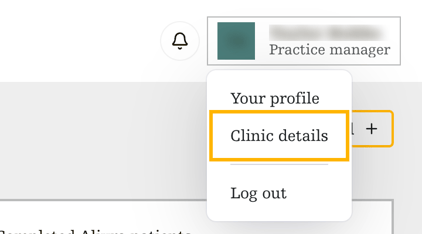

Step one: open your clinic details
- Sign in to the Alivra dashboard.
- Select your name in the top-right corner of the screen.
- From the menu, select Clinic details.
Step two: add your clinic logo
- At the top of the page, select Upload logo.
- Choose your logo from your computer. PNG or JPG both work. Wide and square logos both fit, and a transparent or white background looks best.
- To change it later, select Replace logo. To take it off, select Remove.

Your logo isn't saved until you select Save changes in step four.
Step three: check your clinic details
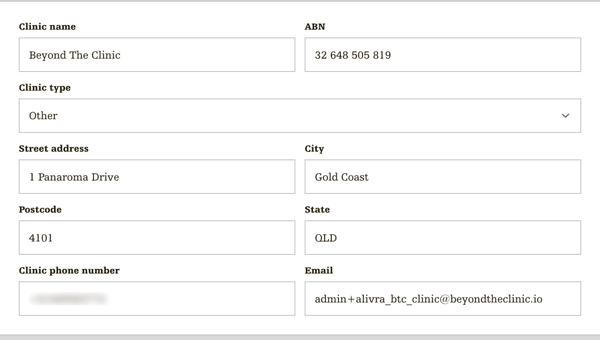
Check each field is correct: Clinic name, ABN, Clinic type, Street address, City, Postcode, State, Clinic phone number and Email.
- To change a detail, select the field and type the new value.
- For Clinic type, pick the option that best describes your clinic.
- Every field is required.
Step four: save your changes
- Select Save changes at the bottom right. It stays greyed out until every field is filled in.
- The button shows Saving…, then Clinic saved. appears above it.
To leave without saving, select Cancel.
Your clinic is set up. Next, invite your surgeons onto the dashboard.